|
Computer
based music composing has become a lot popular with the
new breed of music composers. They have started talking
about “Software Synths” and “Flangers”
and “Filters” in music programs. These “synths”
were basically not available to people who had just started
to compose music due to the cost and maintenance troubles.
Furthermore, nobody was ready to teach the techniques
of using synthesizers, (synths as they are lovingly called).
Nowadays, with the advent of software synthesizers that
could be used on any normal PCs affordable by anybody.
I am going to discuss some of the simple techniques of
using such synths. I may not be covering them in deep,
since such discussions will run pages and will not be
in the interest of the beginners. These articles are intended
to give the reader a good idea of what these synths can
do for you and how you can use it to make interesting,
and professional tracks.
Setting
up the playground
Before
we start with discussion on “Delays” we need
a good software that can host all these “synths”
and let us program them and make music. There are many
such software available in the market. I am going to use
FruityLoops, since that is the program that I use mostly
to program my tracks, and a demo version is available
free from www.fruityloops.com
and incase you like it, you can buy it for a very nominal
price and the program comes with a host of synths to start
with. We will use Fruity Delay 2 for the discussion.
Alright,
if you have already downloaded the software from the website,
let us load it up and begin. Play around a little and
learn the basics of making a track. I don’t want
to cover that part in detail here. Once you are comfortable
with the basics.
Startup
FruityLoops and select File->New. The program provides
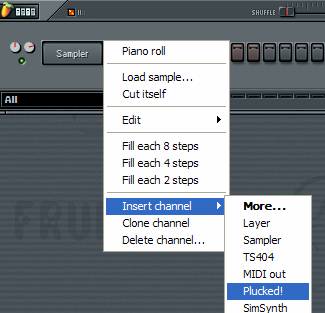
a basic drumkit with 5 or 6 instruments on it. Right click
on one of the channels and insert a “Plucked!”
generator into the channel list as shown below.
Insert
some basic notes like the one shown below. It can be any
sequence of notes which you like. What we need is a repeating
rhythmic piece that sounds good :-)

The
FX window
Take
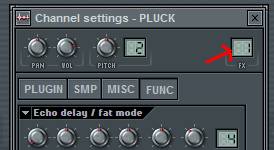
a look at the instrument window of the “PLUCK”
generator. On the top right hand side you would be seeing
an FX number indicating “1”. This is the channel
through which FruityLoops sends the notes to extra effects
you have setup. We will be adding our “Delay”
effect in this channel. For that we need to open the FX
window.
On
the main toolbar click on the FX button and bring up the
FX window.

You
could see 16 FX channels and 4 Send channels. Let us not
worry about the “Send” part now. We will use
the first FX channel to setup our Delay, since we have
asked FruityLoops to use that channel for the PLUCK generator.
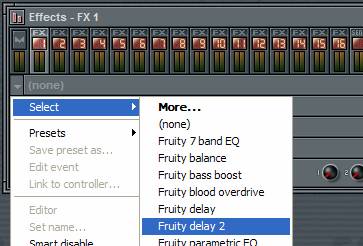
What you see is a list of empty slots to put in the Effect
plugins. Locate the first slot and click on the down arrow
on the left. In the menu that comes up select “Fruity
Delay 2” as shown below.
The
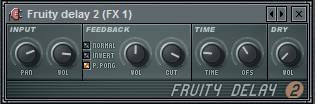
Fruity Delay window looks like the one below. The controls
are pretty much self explanatory. Before we tweak with
the controls let us try playing the song a little. Make
sure play pattern is selected on the toolbar and click
on Play. Now you will see that you hear an “echo”
of all the notes you entered being played with a slight
delay to it. Experiment with the controls a little. Change
the Pan value of the “Input” group to make the
delayed notes on a different speaker. Change the input
volume to change the volume of the delayed notes.
There!
You have created your first Delay effect for your track.
Remember that this is just a basic tutorial. This is just
a tiny bit of the power of using FX channels in FruityLoops.
This may not be the exact way in which you create Delay
effects in a different program. The basic principles do
remain the same.
Hope
this helps. Have fun creating music.
|











 E-zine
Home
E-zine
Home Dhwanii
- Issue 2
Dhwanii
- Issue 2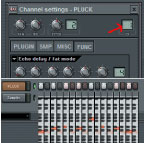 You
can Compose - III
You
can Compose - III